
How To Make Sure Your Emails Land In The Primary Tab


Are your open rates for your email list not as high as you’d like them to be? Do you sometimes wonder if your subscriber even sees your emails at all?
If your emails go to the Promotions tab in Gmail, you may have a lower chance at getting them seen.
In this post, you’ll learn how to make sure your emails land in the Primary tab in Gmail.
1. Understand how gmail tabs work
Before we begin, let’s talk about why the Primary tab is so important and why the Promotions tab is so problematic for marketers.
By default, Gmail users see the following tabs in their inboxes:
- Primary – Messages from real people (non-marketers). Emails that don’t belong in the other tabs will also go here.
- Promotions – Marketing emails, though Gmail says emails related to social and political causes will also go here.
- Social – Emails from social media platforms, dating sites and similar websites.
- Updates – Order confirmations, receipts, bills and bank statements.
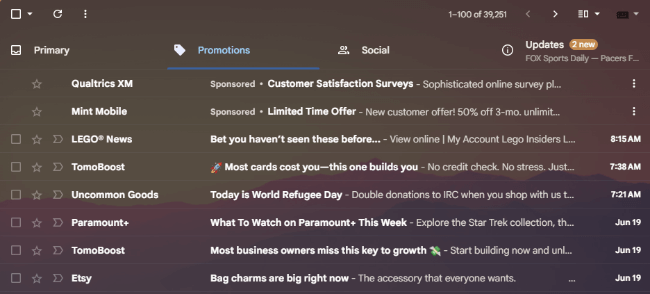
There’s also a Forums tab.
Every email a Gmail user receives will go into one of these tabs.
The reason why the Primary tab is so important is because it’s seen as more of a priority among Gmail users.
In fact, it’s the only tab Gmail has open when users visit their inboxes. Some may never visit the other tabs.
This is why the Promotions tab feels so problematic to marketers. Your email will be lumped in with every other promotional email your subscriber receives.
So, while you may be promoting your latest value-driven blog post, your email will sit beside emails with strong marketing messages like “Huge Sale” and “Act Now!”
Some Gmail users turn these tabs and all other filters off. They prefer the old school method of viewing their emails in the order they were sent.
However, this requires users to fiddle with a few settings that aren’t exactly easy to find, so most probably don’t bother.
At the same time, a lot of marketers are thankful for the Promotions tab. They feel that marketing messages that used to go in the Spam folder back in the day now go to the Promotions tab, meaning subscribers are more likely to see them.
As a Gmail user, I also see emails from blogs I subscribed to in my Updates tab where I also receive order updates from DoorDash, updates to comments I left on Reddit and promotional emails from services I’m subscribed to.
2. Set up email authentication
Many email services, including Google, require senders to properly authenticate their domains so that receiving email servers can verify that your emails are actually being sent by you and not a spoofer pretending to be you.
Email servers use a few different methods to authenticate emails. You need to set these up yourself manually. Your email and domain services will not do it for you.
You’ll need to set up the following email authentication methods as DNS records:
- SPF – Sender Policy Framework. Receiving email servers use this record to verify that you approve of the servers you’re sending emails from.
- DKIM – DomainKeys Identified Mail. This record verifies the source of an email.
- DMARC – Domain-based Message Authentication Reporting and Conformance. This record dictates your DMARC policy. It instructs receiving servers on what to do with your emails when SPF and DKIM records are present.
Add these records wherever the rest of your DNS records are set up.
If you’re not sure whether or not your email authentication records are set up, use a DMARC checker to see if a record shows up for your domain.
3. Accept that spam labels are sometimes not your fault
There’s a bigger problem with Gmail many marketers don’t talk about.
That problem is the fact that some legitimate emails wind up in the spam folder for no apparent reason at all.
Personally, I go for long periods without properly going through my inbox. Sure, I’ll open emails from my bank and services I use, but I sometimes ignore all other messages for a bit.
It seems as though the more I do this, the higher the likelihood emails from legitimate senders I genuinely want to hear from wind up in the spam folder.
I label these emails as Not Spam, but if I get a little lazy with my inbox again, the emails wind up in the spam folder again.
Upon researching this issue, I discovered that a lot of other Gmail users have the similar issues, for a lot of different reasons, too.
Some theorize that the senders haven’t set up proper email authentication.
Others believe that if they mark some emails that were sent from a particular email service, such as Mailchimp, as spam, all other emails sent from that service will also be labeled as spam.
The solution is to create a filter for the sender that tells Gmail to never put their emails in the Spam folder, but again, this requires your subscriber to play around with their Gmail settings on their own.
4. Ask your subscribers to whitelist you
It might seem a little forward, but if you genuinely try to deliver a lot of value to your audience, and your audience seems to be engaged with your content, you might want to consider asking them to whitelist you.
Not only will this put your emails in the Primary tab, it ensures your subscribers never miss out on emails they may genuinely want to receive.
The biggest thing you need to figure out is when to send this kind of email.
A lot of marketers send it immediately after someone subscribes or shortly after.
This can work, but how can you be so certain a brand new subscriber wants to see your emails in the Primary tab?
They haven’t had enough interactions with you to know whether or not your business practices ethics and stays away from spammy marketing tactics.
Try waiting at least two weeks before you send this kind of email.
How to ask your subscribers to whitelist you
There are a few different ways your subscriber can whitelist you:
- Move one of your emails into the Primary tab
- Create a filter to ensure your emails never get sent to the Spam folder
- Add you to their contact list
When you move an email from the Promotions tab to the Primary tab, Gmail asks if you want all emails from that sender to appear in the Primary tab.

Your subscriber needs to click “Yes” in order for all of your emails to be sent to the Primary tab.
Part of your email should ask subscribers to move your emails to the Primary tab while also including screenshots on how to do so.
Your instructions don’t need to be complicated. Something as simple as this will work:
- Find an email from me in your Promotions or Updates tab.
- Drag the email over to your Primary tab.
- Click Yes when Gmail asks, “Do this for future messages?”
You can use a GIF to demonstrate dragging the email to the Primary tab, but stick to screenshots if you’re worried about GIFs affecting your deliverability.
Definitely share a screenshot of the “do this for future messages” popup. It only stays up for a split second, so there’s a good chance your subscriber will miss it.
Just make sure the GIF and screenshot include the email address your subscribers see in their inboxes when they receive emails from you.
In other words, capture these images from your personal Gmail inbox.
Even if your subscriber adds you to the Primary tab, there’s always the possibility that your emails will still wind up in the Spam folder.
This is why you might also want to ask your subscriber to apply a filter to your email address.
Here are the steps for this:
- Open an email from me.
- Click the three-dot menu next to the Reply button.
- Click “Filter messages like this.”
- Click “Create filter.”
- Select “Never send it to Spam,” then click “Create filter.”

Some marketers also ask subscribers to add them as a contact, but this can be pretty intrusive.
When a certain sender keeps ending up in the Spam folder, it’s a common solution among Gmail users to add that sender as a contact.
But because your subscriber likely has everyone from friends to their grandma in their Contacts list, they may feel uncomfortable about a marketer outright asking to be included on it.
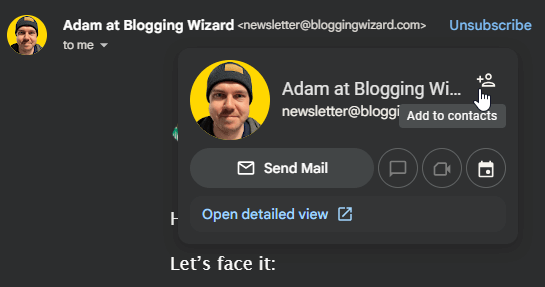
Even so, here are the steps:
- Open an email from me.
- Hover over my name next to my email address in the From field.
- Click the Add to Contacts button.
Subject line and opening message
This is a pretty important email if your subscriber genuinely wants to read your emails. This means your subject line needs to be compelling enough to get them to click.
A simple “Don’t miss out!” or “Never miss an email from me!” creates urgency and a sense of curiosity.
You can also create a more gentle subject line by asking a simple question, such as “Are you missing out on my emails?”
In your opening line, explain the purpose behind your emails. Reveal a little information about your email marketing strategy to your subscriber.
In as little words as possible, explain how you want to provide value to your subscriber and why you think your emails do exactly that.
Then, explain how Gmail works and why your subscriber might miss out on emails sometimes.
Definitely include a phrase along the lines of “while I completely understand why you might not want to” while you ask them to change their Gmail settings for your benefit.
It shows that you recognize that what you’re requesting is a big ask.
5. Add variety to your email marketing strategy
The reason why emails end up in the Promotions tab is because they’re promotional in nature.
Anything that includes an offer or a discount gets sent to the Promotions tab. This is why asking your subscriber to put you in the Primary tab is beneficial.
It’s not a guaranteed method, but if you want more or your emails to appear in the Primary tab, you need to dedicate some of your strategy toward sending simpler emails that feel as though they were sent by a friend.
This means using a simple, plain-text design for the most part, and not including too many links or images.
Create content buckets for your email marketing strategy that represent the many different emails you should consider sending to your subscribers:
- Promotional – Anything from promoting a new blog post to promoting a sales or discount can be seen as promotional in Gmail
- Roundup – Digest emails filled with links to your latest pieces of content. Digest emails that contain curated content and news topics count as well
- Original content – If you truly want to level up your email marketing game, create original content for your email list your subscribers won’t find on your blog or social media profiles
If you balance out your promotional content with value-driven content, you may encourage Gmail to put more of your emails in the Primary tab.
However, like I said earlier, now that Gmail has included an Updates tab, some emails from blogs I’m subscribed to get sent to the Updates tab when they don’t contain a promotion.
6. Improve email deliverability
Email authentication is important for email deliverability, but there’s also other strategies you can use to improve the deliverability of your emails:
- Use a reputable email marketing service that has a high deliverability rating
- Set up double opt-in protocols to verify new subscribers
- Use simpler email designs
- Balance out your email content between promotional content and value-driven content
- Use email verification tools like Mailfloss to verify your subscribers’ email addresses
- Include a recognizable sender name in your emails. Use a single, recognizable name. Don’t switch them out names based on who’s writing your emails
- Remove inactive subscribers regularly
7. Learn to embrace the promotions tab
The Promotions tab isn’t all bad. Like I said, if your emails are making it into the Promotions tab, they’re not being labeled as spam!
It also meets subscriber expectations, especially when your emails do contain promotions.
If you want to stand out in the Promotions tab, consider using email annotations that are designed specifically for this tab.

Gmail allows you to use the following annotations in the Promotions tab:
- Deal annotations – Text-based details about a promotion
- Product carousel – Displays a product carousel
- Single image – Displays a card that features a single image
Subscribers can click on these annotations from their inboxes without having to fully open the email.
Final thoughts
When your emails start to land in Gmail’s Promotions tab, fewer people are going to be reading your emails.
That means less people taking action, becoming customers, and spending money with you.
So, it’s important to take steps that will increase the chances that your emails will land in the Primary tab instead.
Just remember that there is no way to 100% guarantee that will happen.
But following the advice I laid out above will increase your chances dramatically.